The Employee File
The Employee File stores all information that pertains to each employee, including but not limited to pay rates, tax deductions, allowances, deductions, address information, vacation and sick time, and W-2 totals for the year. You may add or edit employee information at any time throughout the year. To open the Employee File, click on Data Setup and choose Employee File.
Once an employee is added, the left side of the screen contains the basic name, address, Social Security number, and phone number information that is entered when the employee is first added. On the right side of the screen is important employee information that is stored in eight tabs. To view a different tab, click on the desired tab name at the bottom right of the screen. In the image below, you can mouse over some of the options to get a little more information on that field, or click to find out more details.
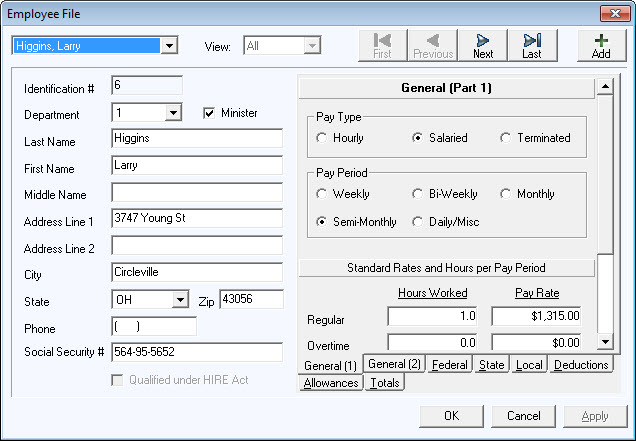
Adding a New Employee
To add a new employee to the Employee File:
- Click on the Add button on the Employee File screen.
- If this person is included in a Department, click on the down arrow in the Department field and select the appropriate one.
- If this person is a minister click in the box labeled minister to check it or to clear it. Canada: If the minister has taken a vow of perpetual poverty, click this box.
- Enter the person's name, permanent address, and phone information into the available fields. An alternate address field is also available for use on paychecks.
- Enter the person's Social Security number. You WILL need to enter the dashes into this number.
- In the Federal Filing Status field, select whether this employee's tax status is Married or Single. Individuals selecting "Married, but withhold at higher single rate" should be checked as Single.
- Click on OK to save this new employee. When the information is saved, the person will be assigned an employee number. This is a system-assigned number and it may not be edited.
- After you have clicked OK, you will get a message, "Please remember to go to the Payroll System Administration menu to set up Accounting numbers for the employee(s) just added".
- After adding new employees, then enter the pay information, tax withholding information and other appropriate information for each new employee on the Employee File.
- When any additional information has been added, click on Apply and OK to exit the Employee File.
General Information - The General (1) Tab
|
The General (1) tab scrolls and includes information about the employee's pay that they will receive and sick or vacation hours that they could accumulate.
|
|
|
|
|
|

Vacation and Sick Time
The Church Windows Payroll program provides automated tracking of accumulated sick and vacation time for each employee. This feature is optional for each employee.
For a detailed example, click here
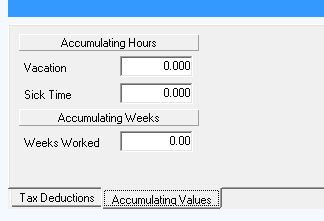
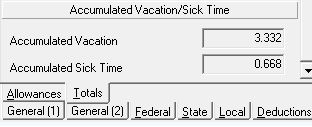
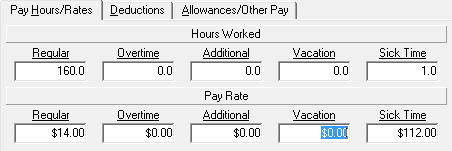
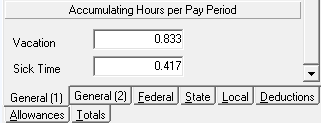
If your employees do not earn accumulate vacation/sick days but are allowed x-number of days per year, the total amount they have for the year can be placed on their record using Calculate Adjustment.
To print a report of vacation/sick time earned and used for a selected employee, go to Reports, History Reportt and select Employee's Detail Hours Report.
General Information - The General (2) Tab
The General (2) tab is also a scrolling tab. It contains additional information about each employee, such as alternate address, emergency contact information, birth date, dates of hire, termination, review, etc., emergency contact information and banking information for EFT.
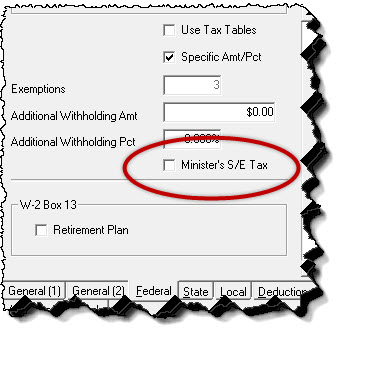
Federal Income Tax Withholding Information
State Income Tax Withholding Information
To view or edit the State Withholding information screen for an employee, click on the State tab at the bottom right of the Employee File.
- The Default State selected on the Organization Information screen, is attached to the employee record. This can be changed if you withhold for a different state.
- Filing Status Code – If applicable, select the filing status based on the employee's state withholding form.
- Use Tax Tables, Additional Withholding Amt or the Additional Withholding Pct - These fields apply to the State Withholding tax in the same way these fields work for Federal taxes on the Federal tab.
- Exemptions - Enter the number of exemptions the employee claims based on the state withholding form.
- Additional exemptions - Some states use a different dollar amount for additional exemptions. If your state does and the employee has any additional exemptions, enter that number into the field.
Local Withholding Information
To view or edit the Local Withholding information for an employee, click on the Local tab at the bottom right of the Employee File.
- At the top of the Local tab is a list of all localities or school districts taxes that have been attached to the employee's record. Each employee may have taxes withheld for multiple localities.
- To add a locality to the list, click in the ID column, click on the down arrow to see the drop-down list of all local taxes that exist in the Local Tax File. Select the tax to be withheld from this person's pay. To add, edit, or delete cities from this list,
- To delete a local tax from an employee's file, highlight that tax by clicking the square at the left of the ID column, then click on the Delete button.
- To have an additional dollar amount withheld for a local tax, enter the additional amount or percentage in the Add. W/H Amount field.
- At the bottom of the screen is a list of the year-to-date taxable wages and tax withheld for each locality or school district. This area may not be edited as the amounts are calculated from pays posted in the Payroll program for the year.
Employee Deductions Information
To view or edit the Deductions information for an employee, click on the Deductions tab at the bottom right of the Employee File.
- On this tab there is a list of all deductions attached to the employee's record. Each employee may have money withheld for a different combination of deductions. If this list is blank, then no deductions will be withheld for this person.
- To add a deduction, click in the ID column, click on the down arrow to see the drop-down list of all deductions. Select the deduction to be withheld. To add, edit, or delete deductions from this list,
- Each deduction that you add to an employee's record will default to the Frequency information that exists for that deduction. The frequency can be edited on the employee record by clicking on the drop down menu and selecting one of the frequencies listed.
- Enter the amount or percent that should be deducted from this employee's pay for this deduction for the frequency selected.
- If the deduction you add is a miscellaneous tax deduction, then the frequency, amount, and percent will default to those entered for this tax deduction on the Deductions File. This information cannot be edited on the Employee File.
- To delete a deduction from this list, highlight that deduction by clicking the square at the left of the ID column, then click on the Delete button.
- At the bottom of the screen is a list of the total year-to-date amounts withheld from this person's pay. This area may not be edited as the amounts are calculated from pay posted in the Payroll program for the year.
Employee Allowances/Additional Pay Information
To view or edit the Allowances information for an employee, click on the Allowances tab at the bottom right of the Employee File.
- On this tab there is a list of all allowances attached to the employee's record. Each employee may have money added for a different combination of allowances. If this list is blank, then no allowances will be added for this person.
- To add an allowance to the list, click in the ID column, click on the down arrow to see the drop-down list of all allowances. Select the allowance to be added. To add, edit, or delete allowances from this list,
- Each allowance that you add to an employee's record will default to the Frequency information that exists for that allowance. The frequency can be edited on the employee record by clicking on the drop down menu and selecting one of the frequencies listed.
- Enter the amount for the allowance for this employee for this allowance for the frequency selected.
- To delete an allowance from this list, highlight that allowance by clicking the square at the left of the ID column, then click on the Delete button.
- At the bottom of the screen is a list of the total year to date amounts added to this person's pay. This area may not be edited as the amounts are calculated from pay posted in the Payroll program for the year.
Employee W-2/941 Totals
The Totals tab summarizes pay and withholdings by tax entity and accumulated sick and vacation time.
- Year to Date Taxable Amounts lists year to date gross taxable pay totals, separated by taxing authority. It also lists the amount withheld year to date for each tax.
- Below the Year to Date Taxable amounts, the same information is separated out by quarter.
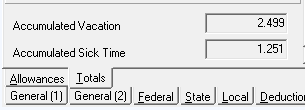
- Accumulated Sick Time and Accumulated Vacation fields show the balance of units (days, hours).
- If you believe these totals are not correct, then run and review a History Report showing Federal Taxable Earnings, Withholdings, and a Net Pay Detail for the employee. You may need to calculate an adjustment to fix the totals.
